CopyCat: The Free Chrome Extension That Copies Text From Anywhere — Even Images
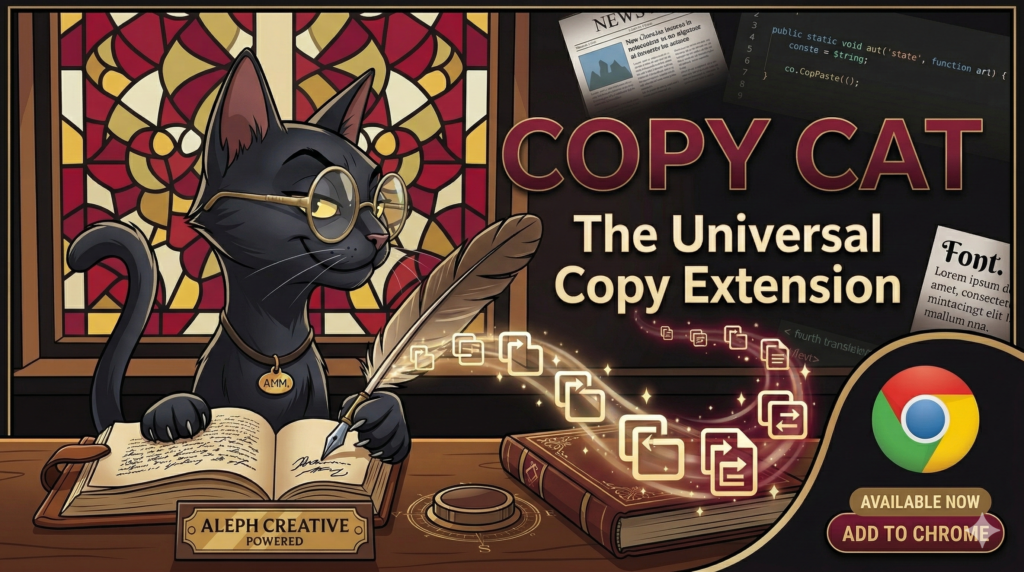
We built a browser tool that extracts text from images, copy-protected pages, and entire webpages without sending a single byte to any server. Here’s why, and how it works.
The Problem Everyone Ignores
You’re reading an article and spot a paragraph inside an infographic. Or a product spec trapped in a screenshot. Or a quote embedded in an image someone posted on social media. You try to select the text, and… nothing. It’s an image. Your only options are to retype it manually or fire up a separate OCR tool, upload the image, wait for processing, and paste the result.
Then there are the sites that actively block text selection. News paywalls, academic portals, recipe sites that disable right-click — all designed to make copying inconvenient. And if you just want to grab every link on a page for a research project or SEO audit, there’s no native browser feature for that either.
We kept running into these friction points in our own work at Aleph Creative, so we built something to solve them once and for all.
What CopyCat Does
CopyCat is a Chrome extension that gives you four distinct ways to copy content from any webpage, all accessible from a single popup or keyboard shortcut.
Draw a rectangle around any area on screen. CopyCat captures the region, runs OCR locally using Tesseract.js, and copies the extracted text to your clipboard.
Alt + SOne click extracts every visible word from the current page. Ideal for archiving articles, feeding content into AI tools, or quick research grabs.
Alt + AHighlight text on a page and click to cleanly copy it — stripping invisible characters, bad formatting, and noise that normal copy-paste brings along.
Extracts every unique URL from the page into a line-separated list. Useful for SEO audits, competitive research, and building resource lists.
Beyond these core modes, CopyCat keeps a history of your last 20 copies (stored locally), supports customizable keyboard shortcuts, and shows unobtrusive toast notifications when text lands on your clipboard.
How to Use CopyCat
- Install CopyCat from the Chrome Web Store. Works immediately — no account or setup needed.
- Click the CopyCat icon in your browser toolbar. You’ll see four action cards: Snip & OCR, Copy All Text, Copy Selection, and Copy Links.
- Choose your mode. For OCR, click “Snip & OCR” and draw a rectangle around the text. For other modes, just click the button.
- Paste anywhere. The extracted text is on your clipboard. Ctrl+V (or Cmd+V on Mac) and you’re done.
Why Local OCR Matters
Most OCR Chrome extensions work by sending your screenshots to a remote server for processing. That means your data — which could include sensitive documents, private messages, financial information, or proprietary content — passes through a third party’s infrastructure.
CopyCat takes a fundamentally different approach. The entire Tesseract.js OCR engine is bundled inside the extension. When you snip a region, the processing happens right there in your browser using WebAssembly. No network request is made, no image leaves your device, and no external API is called.
What this means in practice: CopyCat works offline, processes faster than cloud-based alternatives (no upload/download latency), and guarantees that your data stays on your machine.
How CopyCat Compares to Other OCR Extensions
| Feature | CopyCat | Typical OCR Extensions |
|---|---|---|
| OCR text extraction | ✅ | ✅ |
| 100% local processing | ✅ | ❌ Most use cloud APIs |
| Works offline | ✅ | ❌ |
| Copy all page text | ✅ | ❌ |
| Copy selected text | ✅ | ❌ |
| Extract all links | ✅ | ❌ |
| Copy history | ✅ Last 20 copies | ❌ |
| Keyboard shortcuts | ✅ Customizable | Varies |
| Data collection | None | Varies |
| Price | Free | Free to freemium |
Who It’s For
- Researchers and students who need to pull quotes from PDFs rendered in-browser, archived documents, or academic portals that restrict copying.
- SEO professionals who need to audit page links, extract content for analysis, or grab text from competitor sites.
- Content creators and writers who regularly pull reference material from the web and need it in clean, pasteable format.
- Developers who encounter code snippets in screenshots or tutorial images and want the text without retyping.
- Anyone who has ever been frustrated by a site that blocks copy-paste.
Under the Hood
Tesseract.js for Offline OCR
CopyCat bundles Tesseract.js, the JavaScript port of the well-known Tesseract OCR engine originally developed by HP and maintained by Google. The WASM build runs entirely in the browser’s offscreen document, meaning the main thread stays responsive while OCR processing happens in the background.
Manifest V3 Compliant
CopyCat is built on Chrome’s latest Manifest V3 architecture with a minimal permission footprint. It uses activeTab rather than broad host permissions, meaning it can only access the page you’re actively viewing — and only when you explicitly trigger an action.
Permissions Explained
Transparency matters. Here is every permission CopyCat requests and exactly why:
- activeTab — reads text and captures screenshots from the page you’re on when you click a button.
- scripting — injects the snip overlay and runs text extraction functions.
- offscreen — runs Tesseract.js OCR in a background document (WebAssembly can’t run in service workers).
- clipboardWrite — writes extracted text to your clipboard.
- storage — saves your settings and copy history locally.
No remote code, no analytics, no tracking scripts. The full extension is self-contained and reviewable.
Frequently Asked Questions
Is CopyCat free?
Yes, completely. No premium tier, no ads, no usage limits.
Does CopyCat work on all websites?
CopyCat works on any standard webpage. The only pages it cannot access are browser internal pages (like chrome://settings) and other extensions’ pages — this is a Chrome security restriction that applies to all extensions.
Can CopyCat extract text from images?
Yes. The Snip & OCR mode captures any visible region on screen and runs optical character recognition to extract the text. It works on photographs, screenshots, infographics, scanned documents, memes — anything displayed in your browser.
Does CopyCat send my data anywhere?
No. All processing happens locally on your device. CopyCat has no server, no API endpoints, and no analytics. Your screenshots and extracted text never leave your browser.
Does it work offline?
Yes. The Tesseract.js OCR engine is bundled inside the extension, so it works without an internet connection.
What browsers are supported?
CopyCat is built for Chrome and works on all Chromium-based browsers including Microsoft Edge, Brave, Vivaldi, and Opera.
How accurate is the OCR?
Accuracy depends on the source image quality. For clean screenshots with standard fonts, expect near-perfect results. Handwritten text, heavily stylized fonts, or very low-resolution images will produce less accurate output — this is a limitation of all OCR engines.
CopyCat is built and maintained by Aleph Creative. If you find it useful, a rating on the Chrome Web Store helps more people discover it.